One Push-Up a Week and a Year of Quiet Progress

Brian’s fitness journal after a brain stroke

Today marks a small but meaningful milestone for me—one that took an entire year to earn.

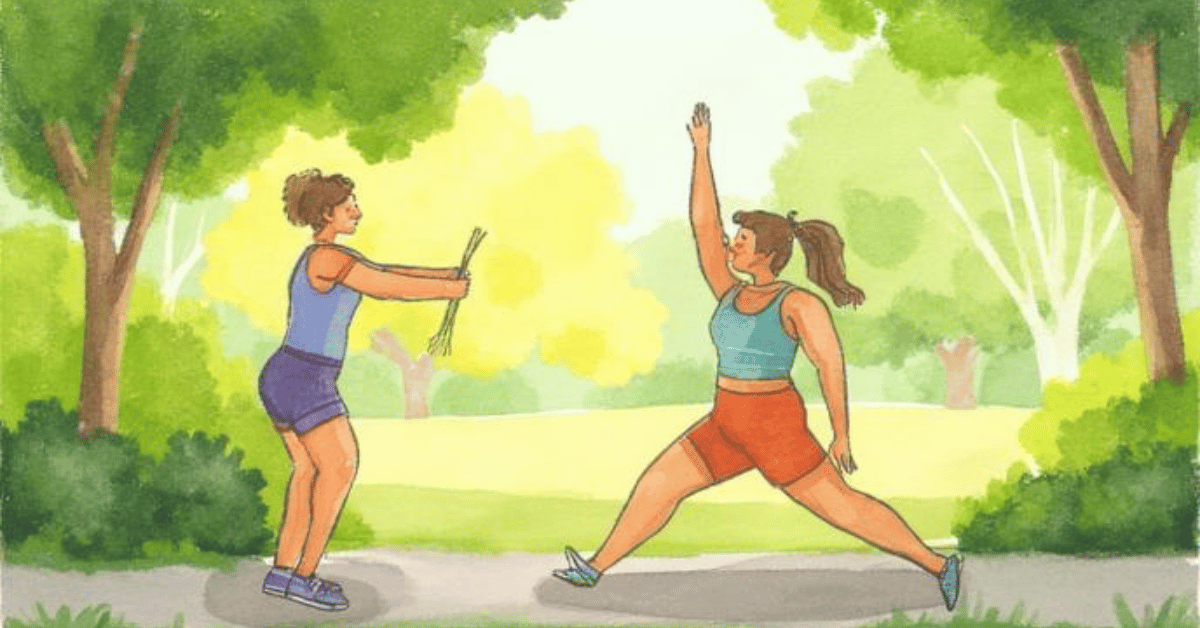
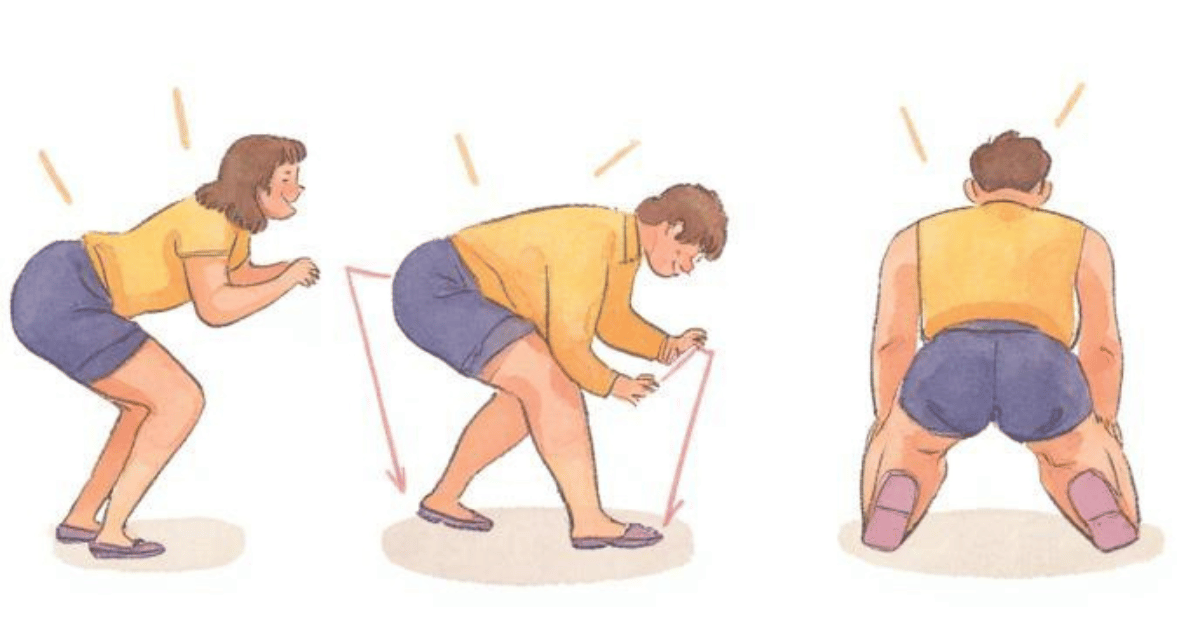
About a year ago, I started doing push-ups once a week. I began at 20 and made myself a very modest promise: add one more rep each week. No heroics. No sudden transformations. Just one extra push-up. Today, that number reached 72.

When you have compromised kidneys, muscle-building looks a little different. I can’t eat as much protein as a healthy adult male, so progress doesn’t arrive quickly—or loudly. I started running about a decade ago, but it was only in the last few years that I began adding other forms of exercise. Even then, I did it cautiously.

Summers are already physically demanding thanks to lawn mowing and general activity, and my body doesn’t recover the way it used to. So instead of piling workouts on top of each other, I started doing something less exciting but far more effective: adding things slowly.

I also tweaked how often—and how much—I train. Rather than working everything in one session, I focus on a few selected muscle groups each time. The goal isn’t exhaustion. The goal is regeneration. Training your body not to recover is not a win.

Since switching to this approach, something unexpected happened: it worked.

My wife mentioned that I look noticeably leaner than I did a few years ago, back when running was my only form of exercise. I’ve noticed it too—mostly because my pants are tighter. And no, it’s not because my legs suddenly bulked up. Progress shows up in mysterious ways.

The push-up plan itself has been almost comically simple. One rep per week. That’s it. Occasionally, I misremember what number I hit the week before, which means I may have skipped a number or repeated one. But honestly? I don’t care. What matters is that I showed up every week for a full year.

That alone feels worth celebrating.

I’d like to reach 100 push-ups someday, but that will take most of another year—and I’m perfectly fine with that. I’m not in a rush. Each week, I’ll try the new number. If I succeed, I’ll add one more for next time. Thanks to a spreadsheet, I can now be reasonably sure I’m not accidentally cheating or sabotaging myself.

A fitness journey doesn’t need to be dramatic to be real. It just needs to be yours. I’ve accepted my kidney disease and built my workouts around what my body can actually handle.

And one push-up at a time, it turns out, is more than enough.

Ctrl + M: Merging PDFs Like a Boss With Python PDF Merger GUI

Day 19 of 100 Days Coding Challenge: Python

Have you ever stood at your flatbed scanner, flipping page after page like a 90s office clerk in a movie montage, only to realize—“Oh great, now I have five separate PDFs that should have been one”? Welcome to my world. We’ve got one of those dinosaurs of a scanner that spits out a new file for every single page, and while it’s good at being stubborn, it’s not great at convenience. Sure, there are free websites that claim they’ll merge your files in a flash.

But when those PDFs contain personal, sensitive, or just plain embarrassing content (say, your creative attempts at calligraphy), uploading them to a mystery website isn’t exactly comforting. So I did what any slightly paranoid, slightly annoyed person would do—I made my own PDF merger. Because sometimes, security means building your own tools with a splash of Python and a sprinkle of stubbornness.

Today’s Motivation / Challenge


Today was about practicality. Merging PDFs sounds boring until you actually need to do it—and then you realize it’s oddly satisfying, like organizing your bookshelf by color or alphabetizing your spice rack. Also, there’s something empowering about replacing a clunky online tool with your own sleek script. This challenge hit that sweet spot between “annoyed enough to act” and “curious enough to build.”

Purpose of the Code (Object)


This little Python program takes all the PDF files in a folder and smooshes—yes, smooshes—them together into one tidy document. No need to click through a bunch of file pickers. No typing long file paths. Just point it to a folder, and poof! One big, shiny PDF.

AI Prompt:


“Rewrite the script so that it automatically merges all .pdf files in a folder, no typing required. Also, make it a GUI version.”

Functions & Features

  • Select a folder via a simple GUI window
  • Automatically find and merge all .pdf files in that folder
  • Save the merged file with a custom filename

Requirements / Setup


To run the program, you need:

bash

CopyEdit

pip install PyPDF2

Python 3.x is recommended (Tkinter is usually pre-installed)

Minimal Code Sample

from tkinter import filedialog

import os, PyPDF2

folder = filedialog.askdirectory()

pdfs = sorted([f for f in os.listdir(folder) if f.endswith(“.pdf”)])

merger = PyPDF2.PdfMerger()

for pdf in pdfs:

    merger.append(os.path.join(folder, pdf))

merger.write(“merged_output.pdf”)

This merges all PDFs in the selected folder in alphabetical order.

PDF Merger

Notes / Lessons Learned


This was my first Python GUI script that I actually plan to use often—and honestly, that’s the best kind. My first version worked, but it asked me to type full file paths like some kind of unpaid intern. One typo, and it all crashed. Then I remembered that I am, in fact, very lazy. So I upgraded to a GUI. One click to select the folder. No paths, no quotes, no drama. It’s exactly the kind of script that “future me” will thank “past me” for—like finding frozen soup in the back of the freezer when you’re starving. Am I proud? Absolutely. Will I use this over and over? Also yes.

Optional Ideas for Expansion

  • Add drag-and-drop support for merging selected files
  • Let the user reorder files before merging
  • Show a preview of filenames and file sizes before final merge

Python, Clean Up Your Room!

Day 18 of 100 Days Coding Challenge: Python

Let’s get one thing straight: I am not a digital Marie Kondo. My desktop often looks like a digital garage sale, and every few weeks, I muster the courage to face it—dragging files around like I’m playing a very boring version of Tetris. I usually go the old-fashioned route: click, drag, sort, sigh. Then, one day, while sorting my pictures, I thought… Wait a minute. I know Python. Why am I doing this with my human hands? So, I decided to create a Python file organizer script to organize my pictures.

Today’s Motivation / Challenge

Today’s project tackles a common monster: messy folders. Whether it’s your Downloads folder, your project archive, or that strange desktop abyss, the pain is universal. The challenge? Build a simple, no-fuss tool that does the sorting for you—like a digital butler who doesn’t judge your file-naming habits.

Purpose of the Code (Object)

This little script organizes all the files in a selected folder by their file extensions. That means all your .jpg files go to the “jpg” folder, .pdf files go to the “pdf” folder, and your .who-knows files? They get a home too. It’s your personal assistant for decluttering—minus the hourly rate.

AI Prompt:

Python code to organize files in a folder by their file extension. Include a GUI for folder selection and an undo function to reverse the operation.

Functions & Features

  • Sorts files by extension into neat subfolders
  • Ignores folders and only targets loose files
  • GUI-based folder selection (no need to type paths)
  • Undo function to restore files to original locations

Requirements / Setup

  • Python 3.6+
    No pip installs required—just your standard library.

Minimal Code Sample

python

CopyEdit

ext = ext[1:].lower() or “no_extension”

dest = os.path.join(folder_path, ext)

shutil.move(file_path, os.path.join(dest, filename))

This sorts each file into a folder named after its extension.

File Organizer

Notes / Lessons Learned

This time, I couldn’t resist poking the code like a cat with a suspicious shoelace. I renamed ChatGPT to “Mrs. Cat” just to see if she’d organize with more sass (she didn’t). Then I fed the script a folder full of chaos—downloads, screenshots, and whatever that .swf file was. Everything got tucked neatly into place. The thrill of seeing it work was only topped by the dread of realizing I’d just hidden all my junk into different corners. So, naturally, I added an undo button. Because sometimes, you need to imagine the consequences before you automate your mess.

Optional Ideas for Expansion

  • Add a “preview before sort” function so you can see what’s about to move
  • Let users customize folder names (e.g., “Images” instead of “jpg”)
  • Add a cleanup timer to auto-organize your folder once a week

How I’m Training Myself to Drink Water Like an Adult

Brian’s fitness journal after a brain stroke

Today’s main objective is simple, practical, and surprisingly difficult: drink water on schedule.

My wife recently bought us matching one-liter water bottles with hour-by-hour drinking markers printed right on them. The idea is elegant—drink steadily throughout the day instead of realizing at 8 p.m. that you’ve consumed approximately nothing.

Everyone should drink water regularly, kidney issues or not. In my case, it’s non-negotiable. My doctor reminds me—firmly—that I need at least 1.5 liters a day. Concentrated urine is not something my already overworked kidneys appreciate, and kidney stones are absolutely not on my wish list.

The problem is not knowing this.
The problem is forgetting.

Over the past week, my routine has been hijacked by distractions: lab appointments, our anniversary dinner, Thanksgiving. All good things—but all excellent at pulling me away from my desk, my notebook, and any awareness of hydration. By the time I noticed, I was hours behind.

So I did what any desperate person would do: I guzzled water to catch up.

This was a mistake.

My body did not appreciate the late-day hydration sprint and politely informed me of its displeasure by waking me up in the middle of the night with a bladder emergency. Lesson learned: hydration is not a cram session.

My wife bought these bottles because she forgets to drink water when she’s writing, reading, or deeply focused on anything at all. She wisely bought one for me too, because I apparently have the same flaw.

Before this bottle, I had no real sense of how much water I was drinking. Now I can see it clearly—and unfortunately, that clarity revealed that several days last week ended with frantic water catch-up. There’s no good excuse for that.

We buy five-gallon jugs from the grocery store and use a water dispenser at home. Between the two of us (and occasional help from the refrigerator dispenser), we now go through about five gallons a week. Ever since getting these bottles, that number has become very consistent—which strongly suggests we were under-hydrating before.

So today, I’m doing things differently. No catch-up drinking. No late-night flooding. Just steady, boring, responsible hydration—one hour mark at a time.If all goes well, my reward will be the most luxurious thing of all:
an uninterrupted night’s sleep.

Choose Your Own Debugging Adventure

Day 17 of 100 Days Coding Challenge: Python

When I was a kid, I got hooked on those old-school text-based games—the ones where you’d type “go north” and end up in a cave with a troll and no map. Pure magic. Eventually, I leveled up to MUD games (multi-user dungeons, for those blessed with youth), which were basically fantasy novels with attitude. Today, I’m not diving headfirst into building a full-blown MUD, but I am reliving those glory days by coding up a little interactive adventure. Because sometimes, the best way to feel powerful is to fight imaginary dragons in your terminal.

Today’s Motivation / Challenge

Today’s project is a nod to nostalgia—and to logic. A text-based adventure game might seem like retro fun, but it’s also a perfect beginner’s playground. It lets you practice the fundamentals of coding in a way that doesn’t feel like homework. Plus, if you’ve ever wanted to boss around a computer with “take sword” or “open door,” this is your moment.

Purpose of the Code (Object)

This program is a simple adventure game where the player makes choices and the story branches based on those decisions. Think of it as a choose-your-own-adventure book, but the computer is the narrator and slightly sassier. It lets you explore, pick up items, and either escape gloriously or fail hilariously.

AI Prompt:

Write a Python text-based adventure game with an inventory system, random events, and health tracking. Keep the story short, funny, and beginner-friendly.

Functions & Features

  • Player can choose paths (left or right) with different story outcomes
  • Inventory system to collect key items like swords or gems
  • Random events (find food, get injured, discover treasure)
  • Basic health tracking for survival stakes
  • A few different endings, some happy, some… less so

Requirements / Setup

You need at least Python 3 to run this program. You do not need any extra libraries for this!

Minimal Code Sample

python

CopyEdit

inventory = []

health = 100

def random_event():

    import random

    outcome = random.choice([“nothing”, “injury”, “found_food”])

    if outcome == “injury”:

        print(“You got hurt! Be careful out there.”)

This function shows how the game randomly triggers events that change what happens next.

Adventure Game

Notes / Lessons Learned

I think this kind of game is secretly a coding bootcamp wearing a fun costume. You get to mess with if, elif, and else without feeling like you’re grinding through math problems. It’s also a nice reminder that logic can be creative. Now, someone like my husband would power through this game in ten minutes flat and ask, “Where’s the final boss?” So next time, I might go full nostalgia and build one of those endless-choice games I used to lose hours in: more dragons, more traps, more ridiculous death scenes.

Optional Ideas for Expansion

  • Add a save/load system so players can return to their adventure
  • Introduce simple combat mechanics with attack and defense options
  • Create a branching map system that tracks where the player’s been

Scraping Smiles: When Quotes and Jokes Collide

Day 16 of 100 Days Coding Challenge: Python

Back in the day, I used to hunt for quotes like a digital philosopher—scrolling through pages of wisdom, looking for that one line to slap on a journal page or a sticky note. Some days were tough, and nothing hits quite like a well-timed dad joke to lift the spirits. At one point, I even had one of those “joke-a-day” calendars perched on my desk like a tiny comedian in paper form. So today, I figured, why not build my own quote-and-joke fetching machine? Just a little web scraping magic to keep inspiration (and groans) flowing.

Today’s Motivation / Challenge

Today’s project is all about turning the internet into your personal mood board—one quote and one groan-worthy joke at a time. The goal? Learn the basics of web scraping without frying your brain. You’ll send a polite request to a webpage, receive a heap of HTML in return, and pick out the good stuff—like a claw machine that actually works. It’s a small but mighty step into real-world automation.

Purpose of the Code (Object)

This script scrapes quotes from a publicly available website and fetches a dad joke from an API. It prints both to your terminal for an instant dose of motivation and humor. There’s no fancy GUI or app—just simple code that works behind the scenes like a cheerful assistant with a dry sense of humor.

AI Prompt: Make it cleaner

Create a Python script that scrapes quotes from http://quotes.toscrape.com and fetches a random dad joke from https://icanhazdadjoke.com. Display both in the terminal using clean formatting.

Functions & Features

  • Scrapes inspirational quotes and author names from a static website
  • Pulls a random dad joke from an online API
  • Prints both quote and joke to the terminal in a readable format

Requirements / Setup

pip install requests

pip install beautifulsoup4

Python 3.6+ recommended.

Minimal Code Sample

import requests

from bs4 import BeautifulSoup

# Get quote

soup = BeautifulSoup(requests.get(“http://quotes.toscrape.com”).text, “html.parser”)

quote = soup.find(“span”, class_=”text”).get_text()

author = soup.find(“small”, class_=”author”).get_text()

# Get dad joke

joke = requests.get(“https://icanhazdadjoke.com/”, headers={“Accept”: “text/plain”}).text.strip()

print(f”{quote} — {author}”)

print(f”Joke of the Day: {joke}”)

This snippet shows the basic scraping and fetching process in just a few lines.

Dad Joke Fetcher

Notes / Lessons Learned

The program itself was refreshingly simple—point, click, extract. However, once the quote and joke came flying out of the terminal like a stand-up act with no stage, I realized something: terminal text isn’t exactly audience-friendly. It’s like watching Shakespeare on a Post-it note. Formatting matters. Also, working with APIs felt smoother than HTML scraping—less messy, like ordering takeout instead of cooking with whatever’s left in the fridge.

Optional Ideas for Expansion

  • Save daily quotes and jokes to a .txt or .csv file to build your own “Laughspiration” archive
  • Schedule the script to run automatically each morning (with cron or Task Scheduler)
  • Add categories for quotes (e.g., motivational, funny, philosophical) and let users choose

When One Missed Task Knocks Over the Whole Day

Brian’s fitness journal after a brain stroke

Today, I learned—once again—that my schedule is only as intense as its weakest forgotten task.

The first crack appeared when I realized I hadn’t prepared the kombucha bottles on Wednesday. Typically, I fill them with sanitizing solution so they’re ready to rinse on Thursday and usable by Friday. This time? Completely skipped. That meant starting the process today and planning to rinse them after we returned from my sister’s house. Already, the day was improvising without my consent.

Next came the laundry problem. I had also forgotten how being away would collide with my laundry schedule—specifically, sheet-changing day. We do have a second set of sheets, but the matching pillowcases disappeared during one of our last two moves and have never been seen again. That meant the current ones had to be washed, dried, and put back on the bed all in the same day.

No pressure.

After my shower, I started the laundry, timing it carefully in my head and hoping it would finish washing just in time to move everything into the dryer before we left. This was optimistic math.

One thing occupational therapy taught me after my brain injury was how essential time management systems are. Trauma made me more forgetful and shortened my attention span. I can easily lose track of what I’m doing—or what I was about to do.

So, through trial and error, I built a system. I remember one anchor task in the morning and linking everything else to it in a chain. Wake up → medication → breakfast → next task → next task. It works beautifully… until it doesn’t.

Holidays are natural enemies of systems.

I love Thanksgiving. Truly. But it rearranges routines just enough to break everything quietly. I suddenly realized I’d missed a few steps earlier in the week, and now I was paying for it in delayed laundry and bottle logistics.

We had already told my sister we’d be on a specific schedule. The plan was to complete everything before leaving. Reality disagreed. The washing machine still needed ten more minutes when it was time to go, meaning the dryer would have to wait until we returned.

At that point, I could feel the pressure building. Too many tasks were being deferred to “later,” and I knew that meant a busier, more chaotic evening. Still, there wasn’t much choice. The schedule had already gone off the rails—I was just managing the damage now.

Some days, the system wins.
Some days, the holiday wins. Today was clearly the latter—but at least I know why.

Python Regex Tester, Refined and Ready for Work

Day 15 of 100 Days Coding Challenge: Python

Regex: the ancient incantation whispered into the void to extract meaning from chaos—or at least, that’s how it feels when you’re debugging it. At work, I’ve been diving into Power Automate, and with a little AI sidekick magic, I managed to whip up a subroutine. Here’s the catch: management is monitoring AI usage as if it were a high-budget Netflix subscription. So if I want to justify it, I have to show results—preferably in PDF form or extracted text using OCR. That’s where regex comes in, acting like a digital highlighter that says, “Hey, this is the bit I want.”
Sure, there are online regex testers, but handing my data to a mystery site on the internet? Not ideal. So, why not just build my own? And voilà—Regex Tester was born, with all the drama of pattern matching and none of the corporate paranoia.

Today’s Motivation / Challenge

Today’s goal was all about building something practical and safe. When you’re automating document workflows at work—especially with sensitive PDFs or scanned images—you want something you can trust. This project enables me to test patterns locally without sharing data, providing me with full control and peace of mind. Additionally, it’s oddly satisfying to watch regex do its detective work in real-time.

Purpose of the Code (Object)

This simple GUI-based tool lets you test regular expressions against any input text. You type in a pattern, paste some text, and instantly see what matches—along with where they appear. It’s a private sandbox for your regex experiments, with none of the “Oops, I just uploaded company secrets to a sketchy website” anxiety.

AI Prompt:

Write a Python program using Tkinter that creates a GUI for testing regular expressions. The user should be able to input a regex pattern and a test string. When a button is pressed, the program should display all matching strings and their positions. Display errors if the pattern is invalid. Keep the interface clean, responsive, and beginner-friendly.


Functions & Features

  • Input fields for both regex pattern and test string
  • “Test Regex” button to trigger evaluation
  • Results window showing matches and positions
  • Error handling for invalid patterns
  • All offline—no data ever leaves your machine

Requirements / Setup

bash

CopyEdit

Python 3.x (Tkinter is included in standard library)

No need to install anything—just run the .py file.

Minimal Code Sample

import re

compiled = re.compile(pattern)

matches = compiled.finditer(test_string)

This finds all the places your pattern matches the test string—like a digital bloodhound sniffing out structure.

Regex Texter GUI

Notes / Lessons Learned

I tested it with some of the Frankenstein-like regex I use at work—and it worked like a charm. Finally, no more awkward toggling between browsers and paranoia over leaking sensitive data. And best of all? It feels good to have built something so useful with my own keyboard and caffeine. Regex might still be cryptic sorcery, but now at least it’s my sorcery.

Optional Ideas for Expansion

  • Add a checkbox for case-insensitive search
  • Highlight matches directly in the test text field
  • Save and reload common patterns from a local file

Scan, Save, Share: QR Codes to the Rescue

Day 14 of 100 Days Coding Challenge: Python

I honestly can’t pinpoint when QR codes became part of our daily visual diet. One day, strange hieroglyphics appeared on a poster, and the next, they were everywhere—from ketchup bottles to gravestones.

I’ve been eyeing them for blog promotion—imagine pointing your phone at a code and instantly landing on a beautifully written post (like this one, for example). It’s a hands-free way to impress your friends and confuse your cat. I even considered slapping a QR code on my GitHub repository just for fun. Why type a URL when you can just scan your way into the internet like a wizard?

Today’s Motivation / Challenge

Today’s project taps into one of the most useful real-world tools you can build with Python: a QR code generator. It’s simple, sleek, and satisfying. If you’ve ever wanted to look like a tech-savvy genius without having to build a rocket, this is your moment. Whether you’re promoting your portfolio, sharing your Wi-Fi, or sending someone directly to your meme collection—QR codes make it smooth and snappy.

Purpose of the Code (Object)

This code takes any text—like a URL, message, or even an email—and turns it into a QR code image that anyone can scan. It simplifies how people access your content, and saves you from typing out long, typo-prone links. Think of it as a shortcut to being impressive.

AI Prompt: Please write a code for “QR code generator” in Python. #provide me, description, #main function, #Repositely name. Make it a GUI Version.

Functions & Features

  • Takes user input and generates a QR code
  • Saves the code as a PNG file
  • Let the user choose where to save the file via GUI
  • Shows a preview of the generated QR code

Requirements / Setup

Make sure you have Python 3.x and install these packages:

css

CopyEdit

pip install qrcode[pil] Pillow

Minimal Code Sample

qr = qrcode.make(“https://example.com”)

qr.save(“example.png”)

GR Generator

Creates a QR code for the link and saves it as an image file.

Notes / Lessons Learned

The first version of this code worked fine—until I forgot to add “.png” to the filename. The result? A mysterious, extension-less file that no image viewer wanted to be friends with.

Then came the GUI upgrade, which was a game changer. Not only could I see the QR code before saving it, but I could also choose exactly where to drop the file—no more hunting around my project folder like a digital bloodhound. It made the process smoother, less error-prone, and oddly satisfying. I didn’t expect a humble little square to make me feel so accomplished.

Optional Ideas for Expansion

  • Add a field to customize QR code color (neon green, anyone?)
  • Embed a logo in the center of the QR code for branding
  • Create a batch mode to generate QR codes from a list of links in a CSV file

A Day of Labs, and Strategically Skipping a Run Without Guilt

Brian’s fitness journal after a brain stroke

After checking the weather forecast yesterday and mentally mapping out today’s schedule, I reached a firm conclusion: squeezing in a run would be heroically unpleasant. I have a blood draw scheduled for 1:30 p.m., which makes a midday run less “healthy habit” and more “logistical nightmare.”

My wife kindly took the day off to drive me to the lab. My nephrologist recently changed lab locations, and what used to be a walkable errand is now a 39-minute drive. Progress, apparently, comes with mileage.

Since she already had the day off, my wife suggested stopping by a secondhand bookstore on the way home. We haven’t been in nearly a year, but we like wandering through shelves where books cost less and come with mysterious past lives. Used books don’t bother either of us—stories age well.

The drive itself was pleasant. Being driven to a lab is significantly nicer than walking there, especially when the destination includes an underground parking garage shared by two identical buildings. Naturally, we took the wrong elevator and ended up in the wrong building.

Everything looked… medical. That was the problem. After a moment of quiet confusion and mutual suspicion, I realized we were definitely not where we were supposed to be. Medical offices are impressively interchangeable. We regrouped, descended, ascended again, and eventually found the correct lab.

Afterward, we rewarded ourselves with a visit to the bookstore. My wife browsed happily and found Lolita, which she’s wanted to read but avoided because of its eye-watering Amazon price. The secondhand copy solved that problem instantly. She didn’t care that it wasn’t new—victory is victory.

Once we returned home, reality resumed. Supper needed cooking. Pies need to be baked for tomorrow’s feast. And just like that, the run officially exited today’s agenda.

Lessons Learned

I usually try to schedule appointments on non-running days to avoid this exact situation, but the lab’s availability didn’t cooperate this time. So it goes.

Being out for several hours tightened the rest of the day’s schedule—for both of us. Even on her day off, my wife had to reshuffle everything to fit the lab visit. Efficiency never truly clocks out.

At least I’ve already completed my running goals for the year, so I feel no pressure to “make up” today’s missed run. If anything, the extra rest might help me recover fully and push harder on Friday.

Sometimes progress looks like running.

Sometimes it looks like skipping a run—with intention, books, and pie preparation waiting at home.